Uniqode’s solution has made our lives a lot easier. Creating QR Codes is quick, and being able to track their performance has proven to be essential for our business.
A location QR Code is a QR Code that stores a map URL to a specific street address or latitude-longitude pair. When someone scans a location QR Code, it opens the user's default mapping app (Google Maps, Apple Maps, or Waze) and loads turn-by-turn directions to the stored address. You can share a location QR Code anywhere, whether on flyers, at your storefront, or embedded on a webpage, so anyone can scan and get directions instantly.
Pin accuracy is the invisible problem that most businesses run into. A Google Maps link copied from a business listing can drop the user at the wrong entrance. The fix is to encode the exact latitude and longitude in a QR Code using the Uniqode generator.
There are two types of location QR Codes:
Static location QR Code: Stores the map URL directly and works as long as the link stays live.
Dynamic location QR Code: Uses a short redirect URL, allowing destination edits, scan tracking, and map changes after printing.
Choose static QR Codes for permanent locations and dynamic QR Codes for locations where flexibility or analytics matter.
A location QR Code does more than point someone to an address. It controls how you measure it, and how easily you can update it.
No typing errors: A scanned QR Code passes the exact map URL to the device, eliminating mistyped addresses or wrong suite numbers.
Works across map platforms: Encode a Google Maps, Apple Maps, or Waze URL, and route users to the right app automatically.
Shareable anywhere: Share a location QR Code on flyers, menus, badges, window decals, or a webpage, online or offline.
Pin-accurate directions: Encode an exact latitude-longitude pair to drop users at your front entrance, not a street centroid.
Track QR Code scans: Dynamic location QR Codes log city, device, daypart, and unique versus repeat counts in real time.
Edit the destination after printing: Update the map URL on a dynamic code without reprinting anything.
How to create a Google Maps QR Code in 5 steps
You can turn any Google Maps location into a scannable QR Code in under a minute with Uniqode. Grab the map link from Google Maps, paste it into the Uniqod’s QR Code generator, customize the design to match your brand, and download the final file. The same flow works for Apple Maps and Waze URLs. Uniqode also lets you track QR Code scans in real time, so you can see how many people scanned your location QR Code, when, and from where.
Follow the five steps below to create a QR Code that opens directions to your exact address on the first scan.
Step 1: Copy the Google map address for your location
Open the Google Maps app, search for your business, and copy the location address. This is the destination to which your QR Code will route users.
Note: Here is how you add other maps if you aren’t using Google Maps.
For Apple Maps: Search in Maps on Mac or iOS, tap Share, and copy the maps.apple.com URL. Apple Maps links open Apple Maps on iOS and fall back to Google Maps in a browser on Android.
For Waze Maps: Long-press the destination in Waze, tap Share, and copy the waze.com URL. Waze links open Waze on devices with the app installed.
Step 2: Open the Uniqode QR Code generator
Open Uniqode's free QR Code generator, log in, and click +Create, then QR Code. Scroll through the QR Code types and select MapLocation or Website.
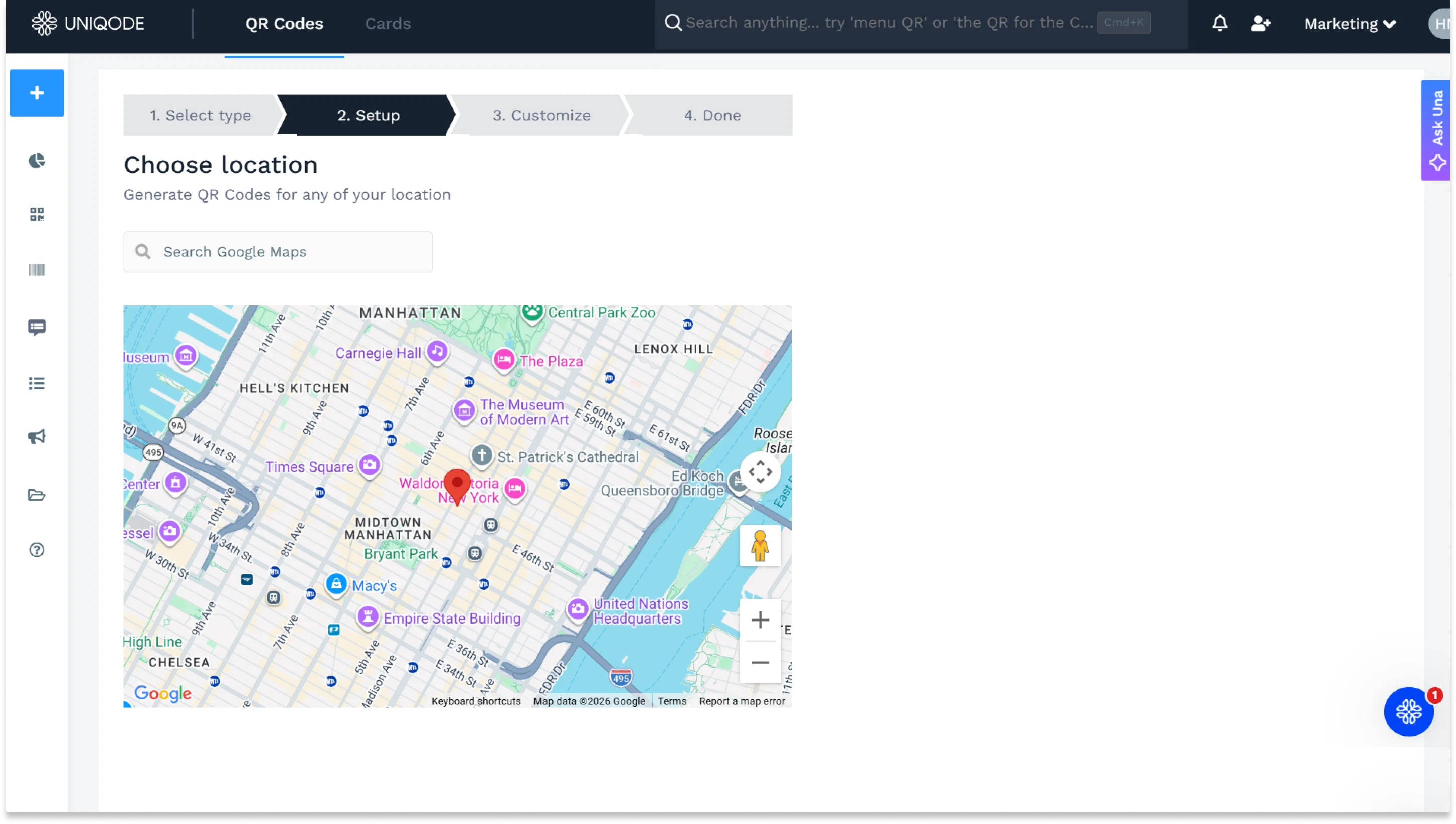
Step 3: Select or add the location
If you are using a Map Location QR Code, you can either paste the map URL you copied in Step 1 or search for the address directly inside the map widget. Once you’ve added the correct location, click Next.
If you are using a Website QR Code, insert the URL copied from your maps app, and click Next.
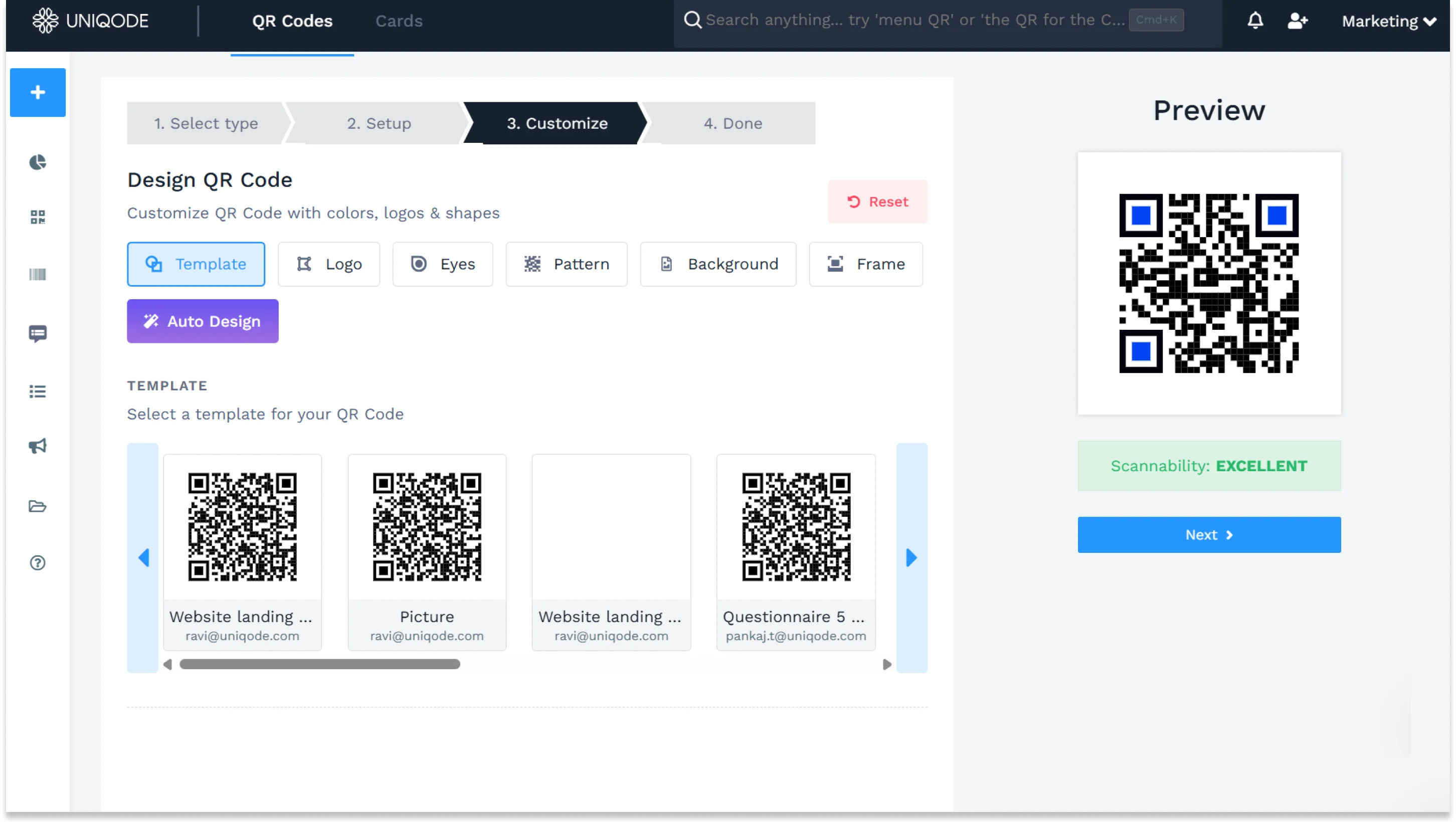
Step 4: Customize your QR Code
Make the code look like part of your brand, not a generic black-and-white square. Pick a frame with a clear call to action like "Scan for directions," Additionally, you can add logo to the QR Code, and swap the default colors for your brand palette. The generator supports custom colors, a center logo, and a range of frame shapes, so you can customize the QR Code to fit any storefront, menu, or print asset.
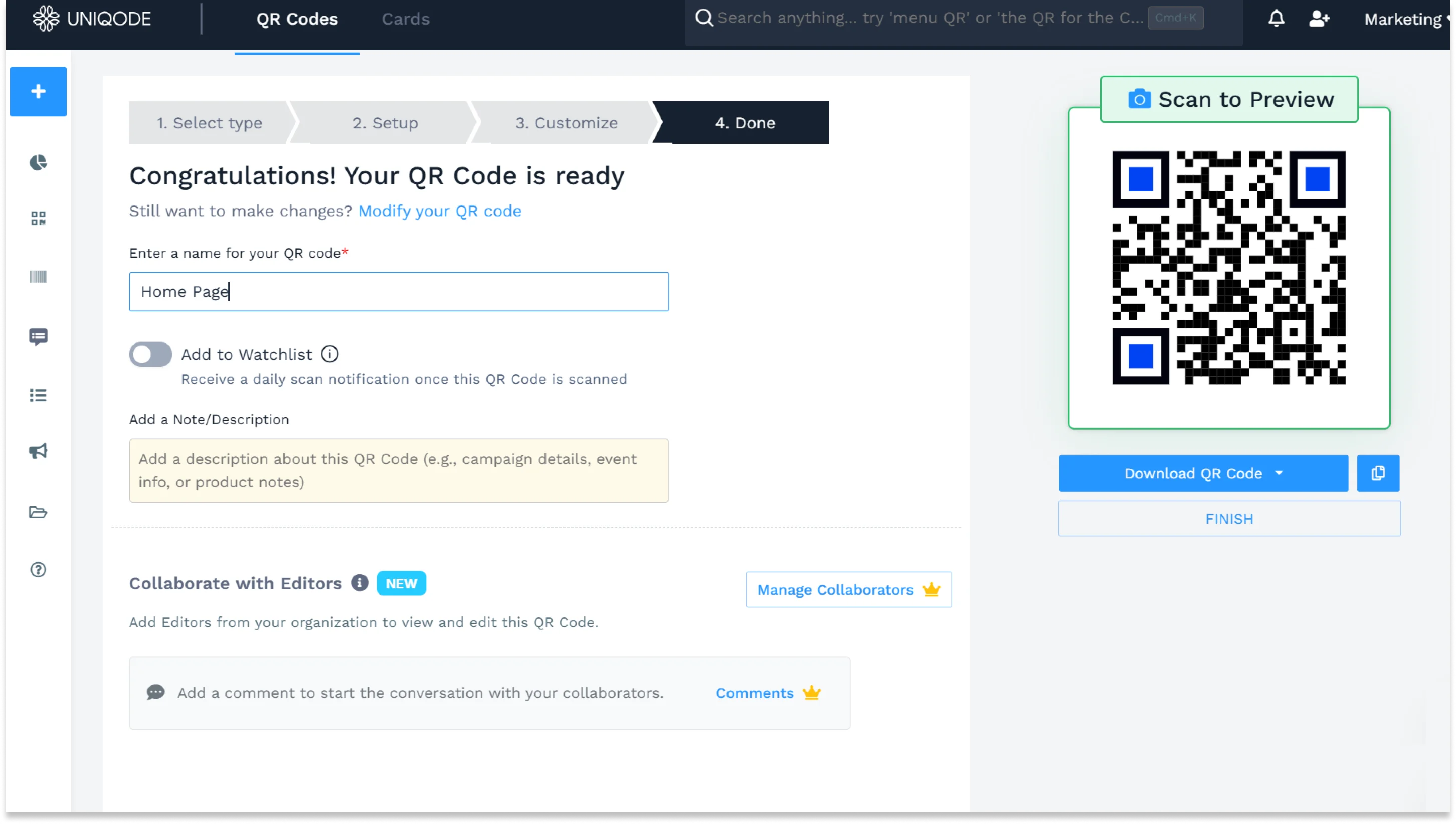
Step 5: Download, test from three distances, and print
Download the file in PNG, SVG, PDF, or EPS. PNG works for on-screen use and most print jobs; SVG is the best choice for large-format print. Test the printed proof before printing. Scan the QR Code from one foot, three feet, and the farthest distance a real user will scan it from.
Where Businesses Use Location QR Codes (modified H2)
Any industry where customers, visitors, or delivery drivers need to find an exact location can benefit from a location QR Code. The use cases below show how location QR Codes are used across industries.
Retail and storefronts
Retail stores print QR Codes on window decals, receipts, and shopping bags so customers can share directions or rebook a visit. QR Codes are used to share business locations as well. Managers who want to measure foot traffic with location QR Codes use dynamic codes to see scan time, city, and repeat-visit rate per storefront.
Hospitality and restaurants
Hotels print location QR Codes on check-in emails, room keys, and valet stubs so guests can share the property address or recall directions after a night out.
Restaurants print location QR Codes on menus to lead customers to their front door, while delivery drivers can use them to find the service entrance.
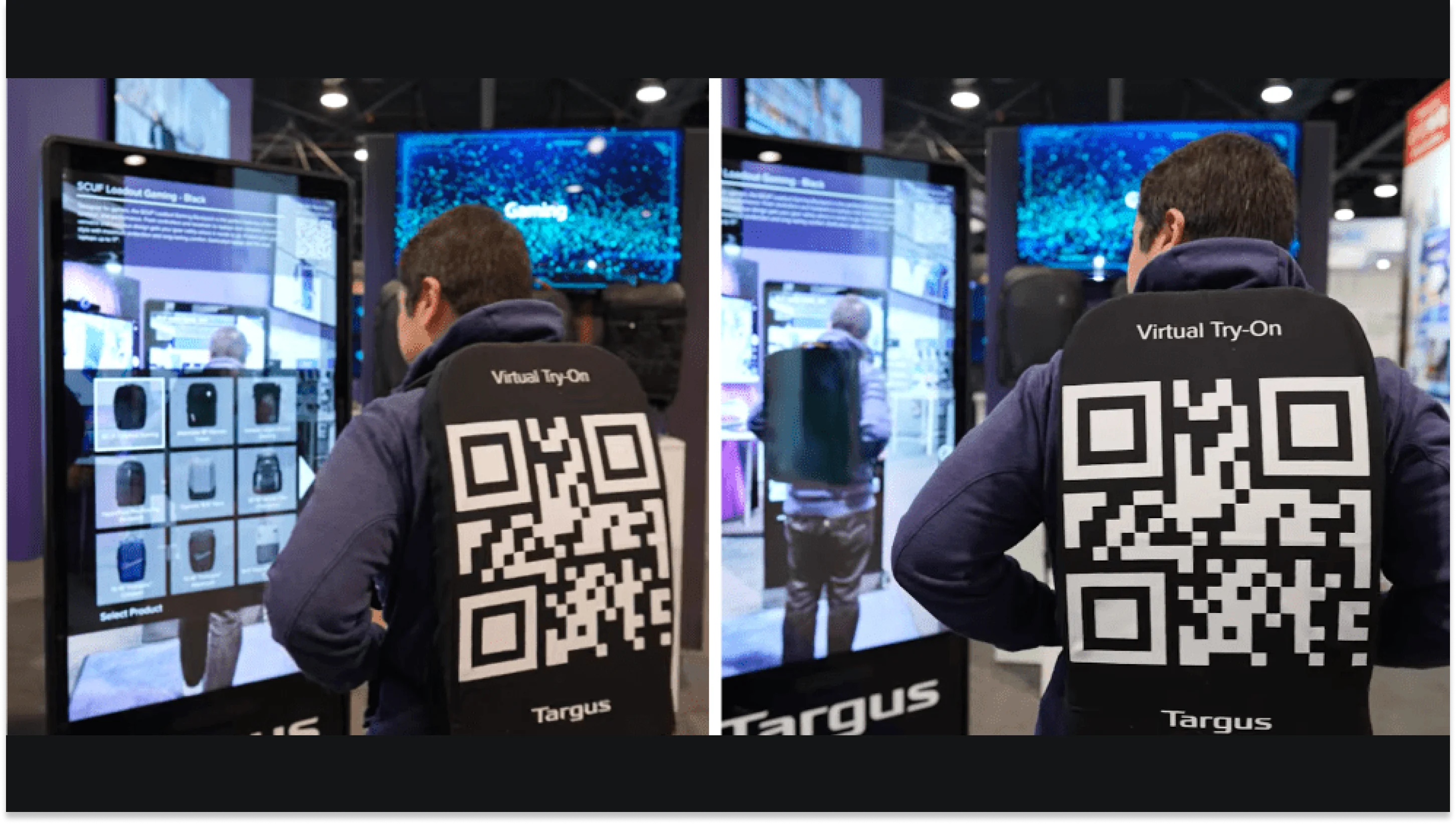
For events, location QR Codes are used for collaterals such as badges, tickets, and signage so attendees find the registration desk, a specific booth row, or the parking entrance. Event organizers use QR Codes to share the exact venue. Trade show booths print the code on table tents so visitors can map back after walking away.
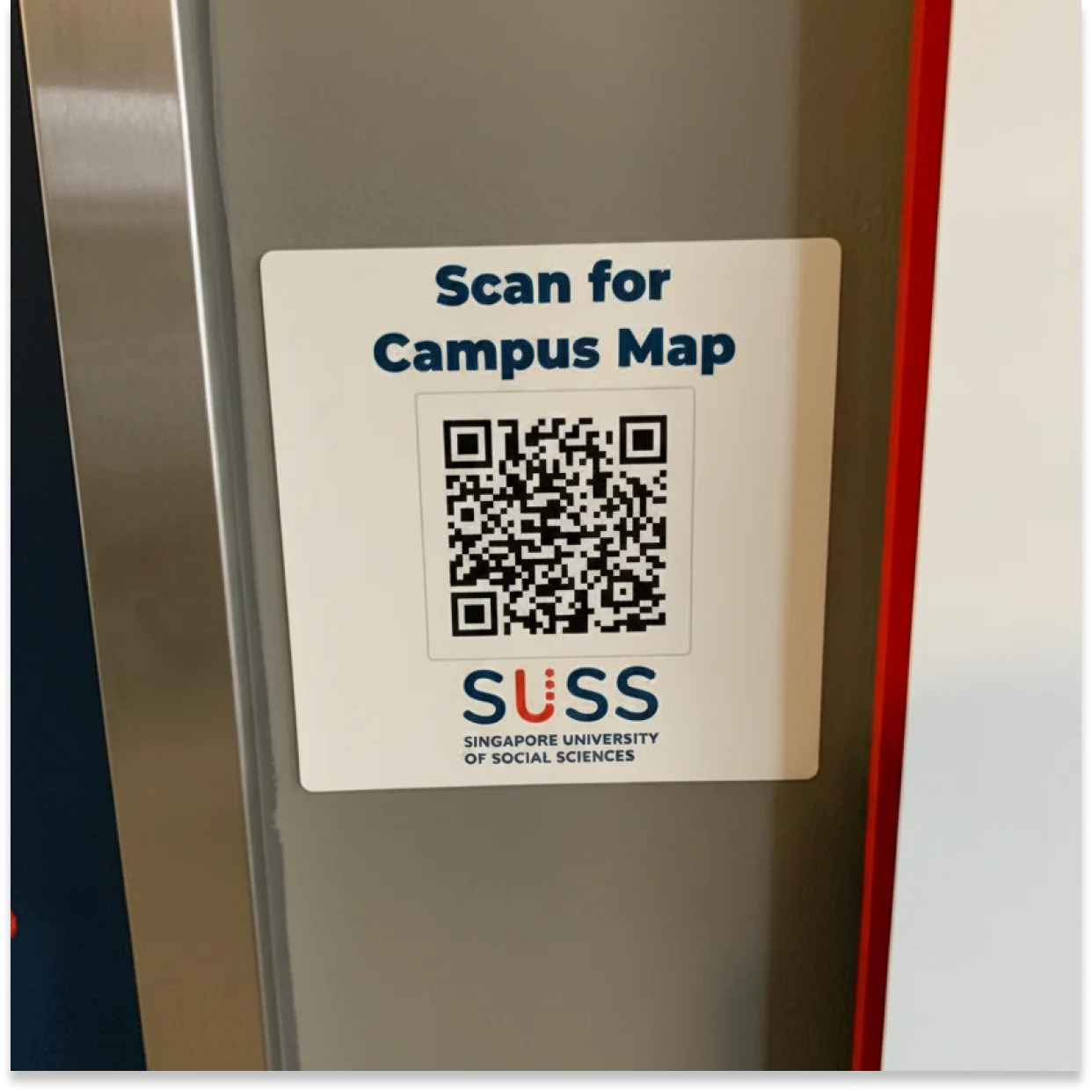
Admissions brochures, orientation packets, and campus maps at universities use QR Codes to help prospective students find specific buildings on multi-building campuses. The code encodes a precise building coordinate, not a campus-center pin, which cuts the "I can't find the lecture hall" call volume during move-in week.
Healthcare, real estate, and logistics
For appointment reminders, hospitals print QR Codes on appointment reminders so patients arrive at the correct department entrance. Real estate agents print the QR Code on yard signs and listing flyers to drop buyers at the exact driveway coordinate, which matters for rural listings where GPS drifts 50 meters. Warehouses print a location QR Code on shipping labels so drivers land at the loading dock, not the office reception.
Why choose Uniqode for location QR Codes
Uniqode builds location QR Codes around three capabilities that match how businesses actually use maps at scale: Smart-Rules routing, GPS scan analytics, and an honest call on when static beats dynamic. The platform also preserves scan history across edits.
One code, nearest branch: Multi-URL QR Codes route a single printed code to the closest branch based on the user's geolocation. Someone scanning in Austin is sent to directions for the Austin branch, while someone scanning in Chicago is sent to the Chicago location.
Scan analytics by device and daypart: GPS scan analytics log city, OS, daypart, and unique-versus-repeat counts. Export to CSV or pipe to a business intelligence (BI) tool through the API.
When static beats dynamic: Pick static for a single fixed storefront with a permanent decal. Pick a dynamic QR Code when the address may change, scan analytics matter, or one code routes to multiple branches.
Sizing, placing, and testing location QR Codes
Location QR Codes earn scans by being readable from the distance a real user will approach. The specs below match industry testing for minimum scan distance and contrast ratio.
Minimum sizes by placement
Minimum QR Code print size scales with viewing distance on a 10:1 ratio.
Window decal: 2 inches (5 cm) for scans from 20 inches.
Business card or flyer: 0.8 inches (2 cm) for scans from 8 inches.
Event signage or table tent: 1 inch (2.5 cm) for scans from 10 inches.
Billboard: 12 inches (30 cm) for scans from 10 feet; increase size for longer distances or roadside viewing.
Contrast and error correction
Contrast ratio and error correction level determine whether a QR Code survives a scratch, a fold, or a dim lobby. Use a 7:1 contrast ratio between code and background. Choose error correction level M (15% damage tolerance) for indoor print and level Q (25%) for outdoor print. Level H (30%) is suitable for high-abrasion surfaces, such as vehicle wraps.
Test before you print and retest quarterly
A printed location QR Code needs a quarterly retest because URL rot is real for Google Maps place IDs and ever-present for any short-link service. Walk the scan from three distances before mass printing, then re-scan every 90 days to catch a moved pin or a merged place listing before a customer does.


.png)


 Templates
 Logo
Logo
 Design
 Frame
Frame
.webp)

.webp)
%20(1).webp)
.webp)
.webp)
.webp)
.webp)
.webp)
.webp)
.webp)
.webp)
.webp)
.webp)