
How to Scan a QR Code on an iPhone: 5 Methods (2026)
Scan QR codes on iPhone using the Camera app, Control Center, or from a screenshot and camera roll. Works on iPhone 6 through iPhone 16. Step-by-step instructions + troubleshooting fixes. Includes troubleshooting and safety tips.
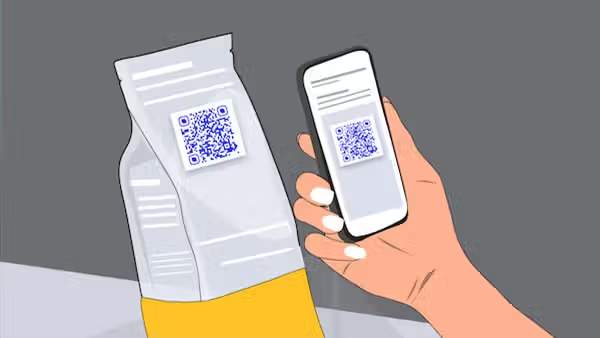
iPhones with iOS 11 or higher can scan QR Codes without any third-party app. The fastest method is the built-in Camera app: open it, point it at a QR Code, and tap the notification that appears at the top of your screen. When the QR Code is already on your iPhone screen, in a text message, an email, or a screenshot, you need a different method entirely.
Five built-in methods cover every scenario: Camera app, Control Center, On-screen QR Codes, Photos Live Text, and the Wallet app. This guide explains each one, when to use it, and how to fix it when scanning doesn't work.
This guide covers all five, explains when each applies, and includes troubleshooting for when the camera refuses to scan at all.
H2: How to Scan QR Code on iPhone (5 Ways)
Five native scanning methods exist on iPhone, and the right one depends on where the QR Code is located.
- Camera app: Physical QR Codes in front of you (menus, signs, packaging)
- Control Center: Low-light situations or frequent scanning
- On-screen QR Codes: Codes that arrived in a text, email, or DM
- Photos Live Text: QR Codes saved as photos or screenshots in your camera roll
- Wallet app: Boarding passes, event tickets, and loyalty cards.
1. Scan QR Codes Using the iPhone Camera App (Fastest Method)
Use this method when the QR Code is on a physical surface in front of you, such as a restaurant menu, product package, sign, or flyer.
- Step 1: Open the Camera app and point it at the QR Code.
- Step 2: Tap the notification banner that appears on the screen. The banner displays the information stored in the QR Code.
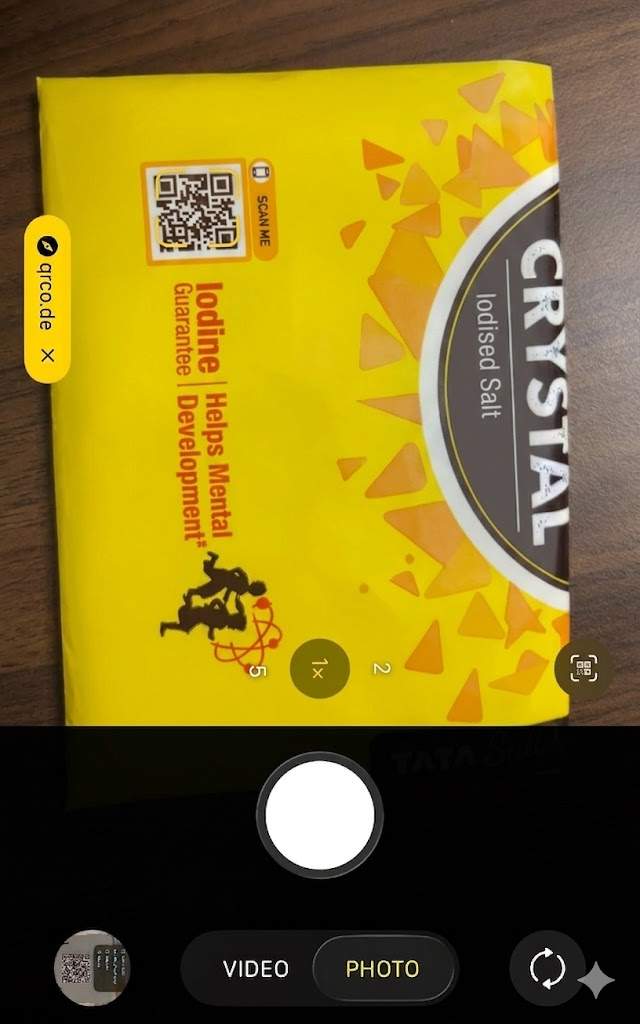
The notification banner displays the destination URL as soon as the camera locks on. Before tapping, read the URL in the banner.
2. Scan QR Codes Using the Control Center Code Scanner
Use this method when you are scanning in a low-light environment or when the Camera app is slow to lock on. The Control Center has a dedicated Code Scanner with a built-in flashlight for dark conditions. It locks onto QR Codes, including partially damaged or blurred ones, faster than the Camera app in difficult lighting.
To scan with the Control Center Scanner, follow the steps below.
- Step 1: Open Control Center (swipe down from the top-right corner on Face ID iPhones; swipe up from the bottom on Home button models). Tap the Code Scanner icon.
- Step 2: Point the camera at the QR Code. Tap the notification banner that appears at the top of your screen.
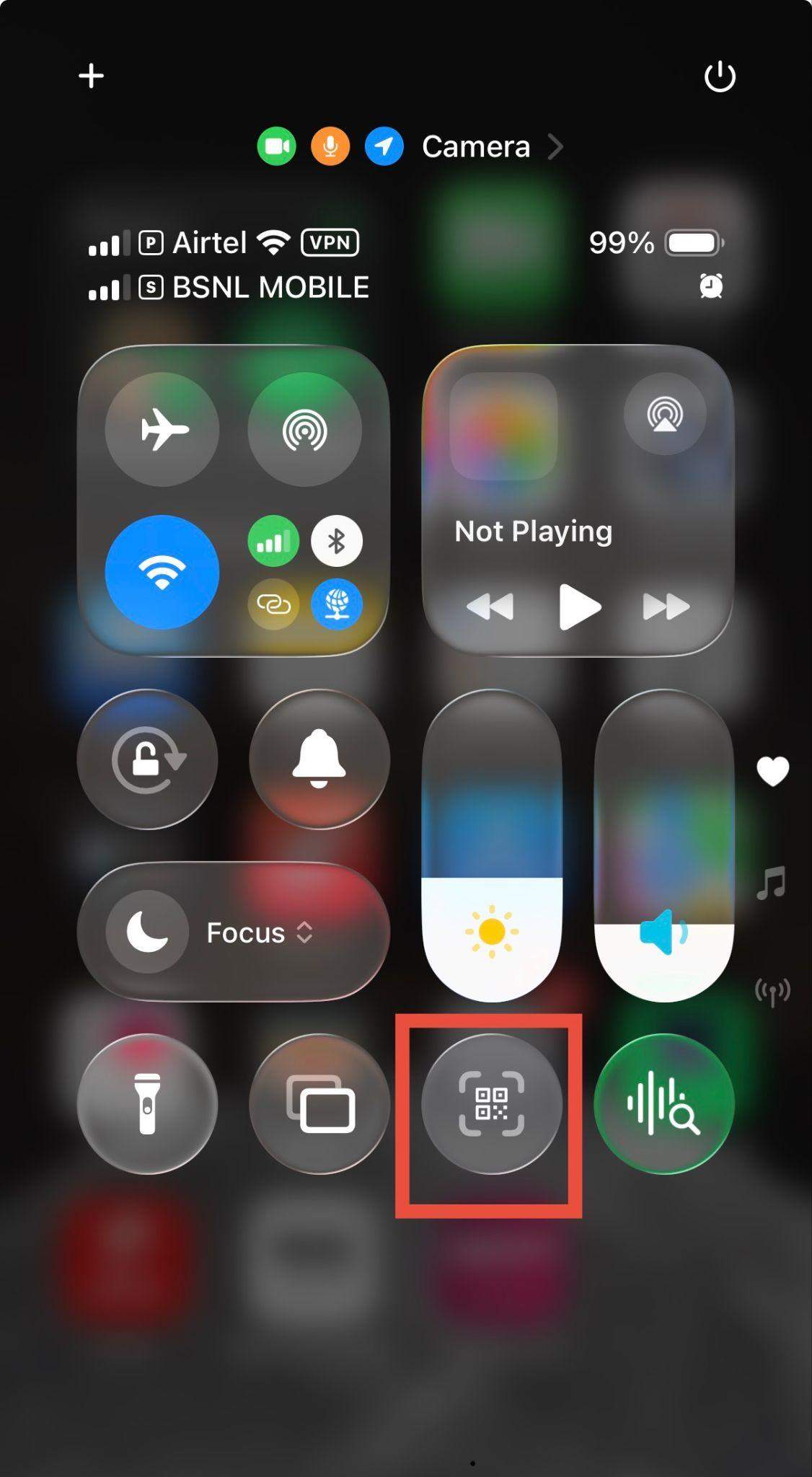
You can use the flashlight button at the bottom of the screen for low-light environments.
If you don’t see the Code Scanner in the Control Centre, you’ll need to do a one-time setup. Follow the steps below to setup Code Scanner to Control Center.
- Open Settings
- Tap Control Center
- Find Code Scanner in the list and tap the green + button next to it
3. Scan a QR Code from a camera roll or screenshot on an iPhone
To scan a QR Code from a photo on an iPhone, open the image in the Photos app, then tap and hold on the QR Code until a menu appears, allowing you to open the link in Safari or copy it. This feature, part of Live Text in iOS 15+, works on screenshots and saved images.
If your iPhone runs iOS 15 or later, follow the steps below.
- Step 1: Save the QR Code image to your Photos app. In iMessage, press and hold the image and select Save to Photos. In email or Safari, press and hold the image and select Save Image.
- Step 2: Open the Photos app and locate the saved QR Code photo
- Step 3: Tap directly on the QR Code in the photo. A notification banner will appear with options such as Open Link.
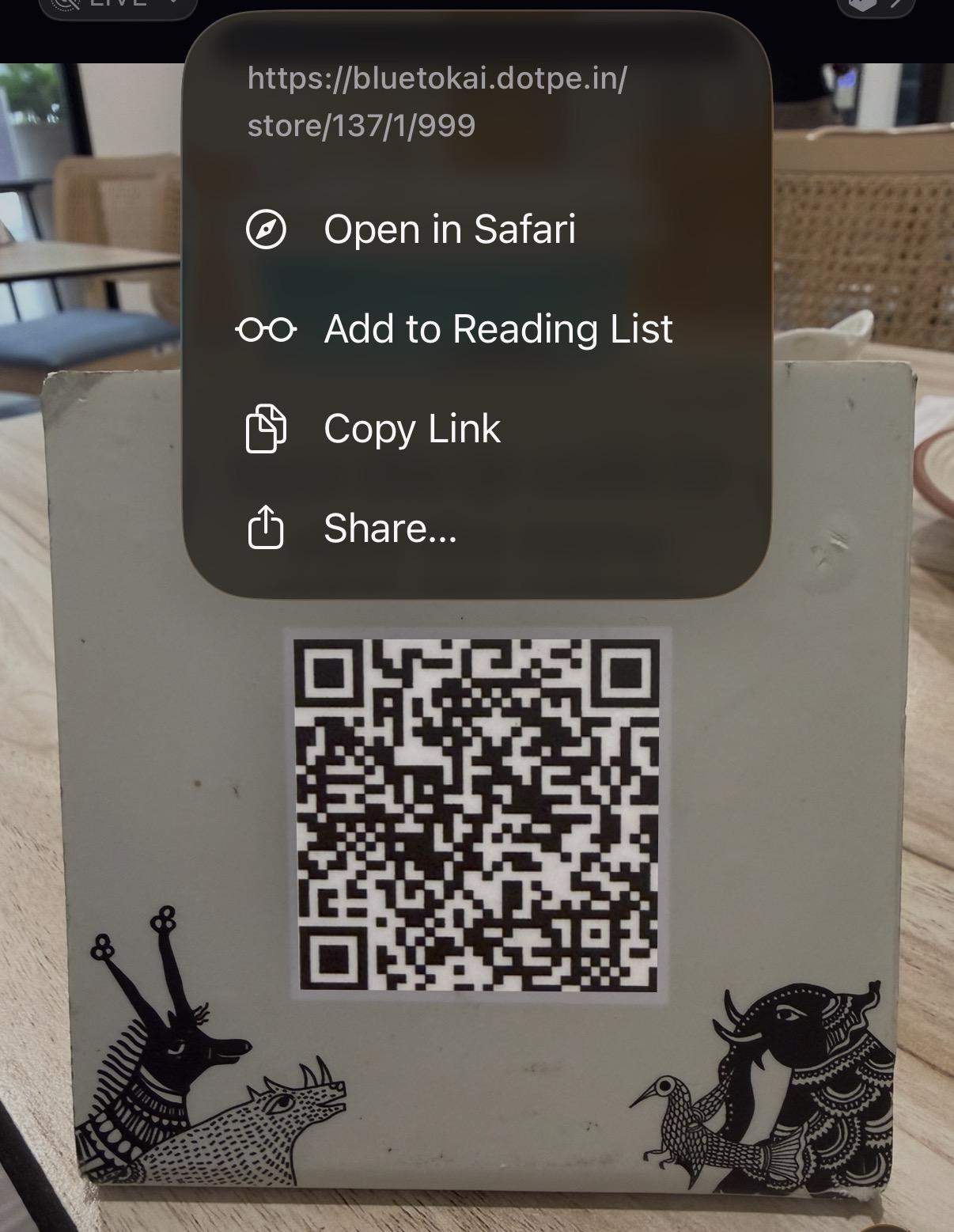
Shortcut in iOS 17 and later: When a QR Code image arrives in Messages, press and hold the image. iOS 17 added QR Code detection in the Messages context menu. If an Open Link or similar option appears, tap it to open the QR Code destination without saving the image first. If the option does not appear, save the image to Photos and use Live Text.
If your iPhone runs iOS 14 or earlier: Save the image to your camera roll, then open Google Lens (free on the App Store). Google Lens reads QR Codes from saved photos on older iOS versions.
→Related: How to scan a QR Code from a saved photo
Add- Scan QR Code on iPhone from Camera Roll or Screenshot
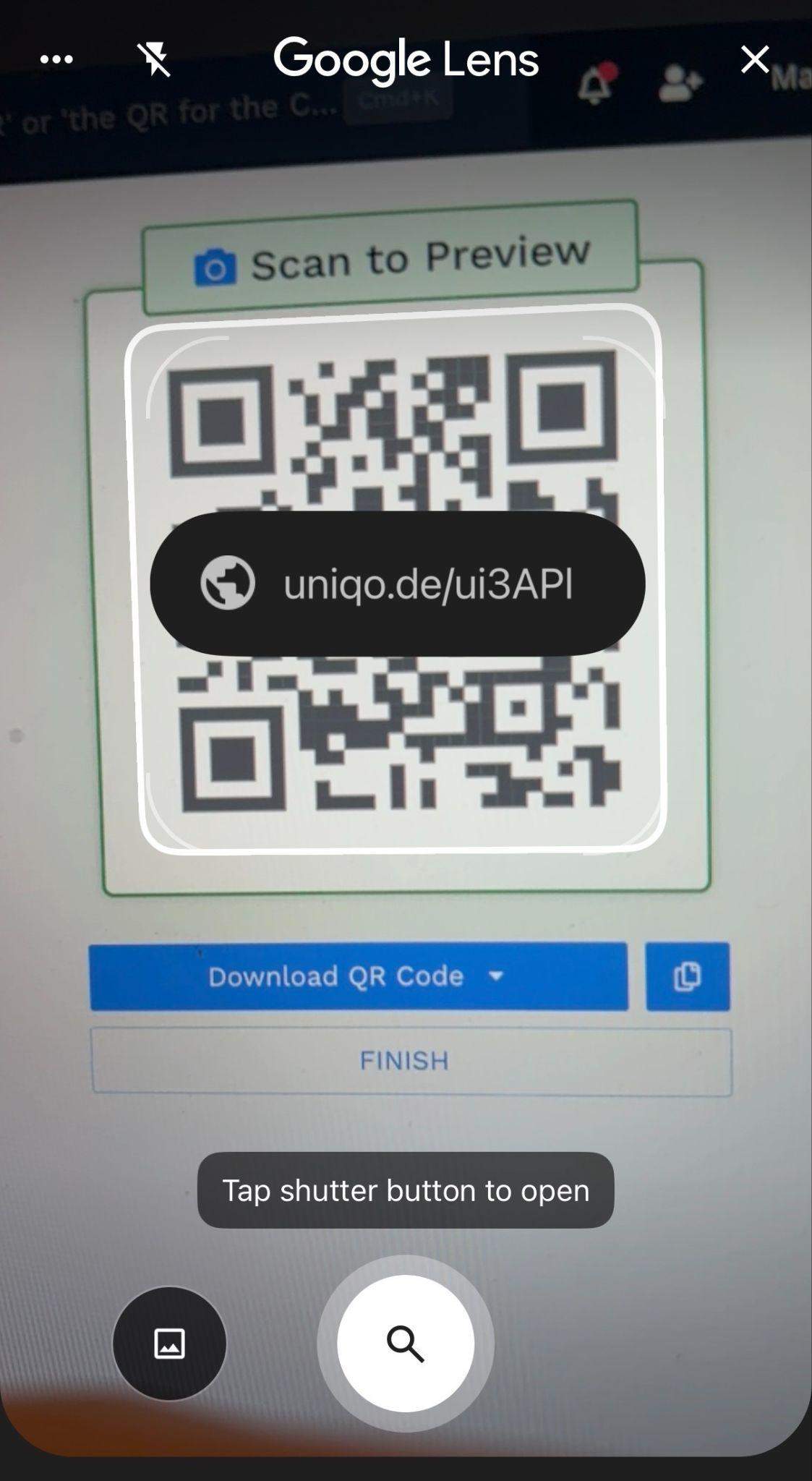
4. Scan QR Code on iPhone with Chrome
Now, scan a QR Code on your iPhone using Google Chrome with these simple steps.
Step 1: Download Chrome from the App Store. If you already have Google Chrome on your iPhone, make sure to update it.
Step 2: With your iPhone, click on the Google Chrome app icon on the home screen. Now, click on the lens icon on the search bar.
Step 3: Enable the app to access the camera. Tap OK in the pop-up menu to scan a QR Code.
5. Scan QR Code on iPhone with the Apple Wallet app
The wallet app on iPhone, iPad, and iPod touch can scan a QR Code. To access the scanner on the wallet app:
Step 1: Tap on the Wallet app and click the + button at the top of the Passes section
Step 2: Tap on Scan Code to add a Pass. From here, you can scan QR Codes for coupons, tickets, boarding passes, and loyalty cards. If you frequently handle digital passes or coupons in PDF format, tools to convert PDFs can help ensure they are in a compatible format for quick scanning and storage.
The Wallet app only allows you to scan coupons, loyalty cards, and tickets. If you try scanning any other QR Code, you will receive an error message.
How to scan a barcode on iPhone
The iPhone's built-in Camera app does not scan standard product barcodes — it only reads QR Codes. For 1D barcodes (the kind on grocery items or packaging), you need an app that supports the format.
The fastest workaround: use a retail app you already have. Amazon, Walmart, and Target all include built-in barcode scanners. Open the app, tap the camera icon in the search bar, and point it at the barcode.
For a general-purpose scanner, QRbot (free, App Store) reads EAN-13, UPC-A, Code 128, and dozens of other formats using Apple's native scanning engine.
Why your iPhone won't scan a QR Code
If a QR Code is not working on your iPhone, the cause is almost always one of six things. Check them in order before assuming a hardware issue.
- Scanning is disabled. Go to Settings > Camera and enable the Scan QR Codes toggle.
- iOS is below 11. Go to Settings > General > Software Update and install available updates. If your device can't reach iOS 11, download a third-party QR Code scanner app.
- Insufficient lighting. Switch to the Control Center Code Scanner, which includes a built-in flashlight.
- Dirty lens. Wipe the camera lens with a soft cloth.
- Damaged or faded code. Try scanning from 4, 8, and 12 inches to find the optimal distance.
- Wrong scanning distance. Hold the phone level at 8 inches and wait for 2 to 3 seconds.
Apps that can also scan QR Codes on your iPhone
Several apps already installed on most iPhones include QR Code scanning functionality. The native Camera app remains the most reliable general-purpose scanner. Use these in-app options when you are already using the app and scanning is a natural part of that workflow.
- Snapchat: Open Snapchat and point the camera at a Snapcode or standard QR Code. Press and hold the code to scan it. Snapchat's scanner reads both its own format and general QR Codes.
- WhatsApp: Open WhatsApp, go to Settings, and tap the QR Code icon next to your profile name. Tap Scan Code. Note: WhatsApp's in-app scanner is designed for adding contacts via WhatsApp QR, not for general URL-based QR Codes.
- LinkedIn: Open LinkedIn and tap the search bar. Tap the QR Code icon on the right side of the search bar. LinkedIn's scanner reads both LinkedIn profile QR Codes and standard QR Codes.
- Pinterest: Open Pinterest and tap the camera icon in the search bar. Tap the QR Code icon. Pinterest's scanner connects primarily to Pinterest content when a Pinterest QR Code is scanned.
→Related: Best QR Code scanner apps
Scan smarter on your iPhone
Scanning a QR Code on your iPhone is straightforward once you match the method to the situation. The Camera app handles physical codes. The Control Center handles low-light conditions and frequent scanning. Live Text in Photos handles codes that arrived as images on your device.
To create a QR Code, start a 14-day free trial. If you need further assistance, talk to one of our experts today!
Frequently Asked Questions
- How do I scan a QR Code from the photo album on my iPhone?
To scan a QR Code from the photo album app, open the photo in the Photos app. On iOS 15 or later, tap the Live Text button in the lower-right corner of the photo, then tap the QR Code. An action prompt (Open in Safari or similar) will appear. On iOS 14 or earlier, open the photo in Google Lens (free, App Store) to read the code.
- Where is the QR Code scanner on my iPhone?
iPhones with iOS 11 or later have a built-in QR Code scanner in the Camera app. Open Camera, point it at a QR Code, and tap the notification banner. For a dedicated scanner with flashlight support, add Code Scanner to your Control Center: go to Settings > Control Center and tap the + next to Code Scanner.
- How do I scan a QR Code with an iPhone 6?
iPhone 6 supports iOS 12, which includes native QR Code scanning. Open the Camera app and point it at a QR Code. If the camera does not detect the code, go to Settings > Camera and confirm Scan QR Codes is enabled. If the problem persists on iOS 12, a dedicated scanner app from the App Store is the most reliable alternative.
- Can you scan a QR Code from a screenshot on an iPhone?
Yes. Open the screenshot in the Photos app, tap the Live Text button (iOS 15 or later), and tap the QR Code. The action prompt appears and you can open the link from there. On iOS 14 or earlier, open the screenshot in Google Lens instead.
- Is it safe to scan a QR Code on an iPhone?
The Camera app shows you the destination URL in a preview banner before you tap, so you can verify the domain before visiting. Check that the URL is HTTPS and that the domain matches the expected brand. Treat QR Codes on public surfaces with added caution: sticker-over-sticker tampering has been documented on parking meters, transit stops, and restaurant tables.
- Do I need a QR Code scanner app on my iPhone?
No. iPhones with iOS 11 or later scan QR Codes natively through the Camera app and Control Center. A third-party app is only necessary if your iPhone cannot update past iOS 10, or if you need specific features such as scan history, bulk scanning, or link management.
- Which iPhones can scan QR Codes natively?
Any iPhone running iOS 11 or later can scan QR Codes through the built-in Camera app. Before scanning, confirm two things: your iOS version (Settings > General > About) and that the scanning toggle is enabled (Settings > Camera > Scan QR Codes). A disabled toggle is the most common cause of scanning failures. iOS 15 added Live Text, which recognizes QR Codes inside photos and screenshots.
Related Posts
Do QR Codes Expire? How Long They Last & Why
How to Scan QR Codes on Android in 2 Steps

QR Code History—From 1994 to 2024—in Under 10 Mins
Smart QR Codes Explained: What Are They and How to Create One

Static QR Codes 101: What You Need To Know (& When To Skip Them)
![How to Create a QR Code Menu for Free [+Tips to Customize]](https://cdn.sanity.io/images/0aocp9sp/production/066ec28d5cd66e780c5acb69f3b436c9157469d6-2880x1620.png?w=3840&q=65&auto=format&fit=max)